Getting Started with EVSpark
This page walks you through starting with EVSpark, the free CAN diagnostic tool for Mia Electric: required hardware, connecting to the vehicle, configuring the USB-CAN adapter, and making your first connection.
1. What you need
To use EVSpark you need:
- A Windows computer (Windows 10 or newer).
- An OBD2-to-DB9 (or bare-wire) cable to connect the vehicle's diagnostic port to the adapter.
- Your Mia Electric with ignition on (key in the +APC position).
Compatible USB-CAN adapter
EVSpark supports two WaveShare interfaces:
USB-CAN-A
(recommended, economical, STM32) — single-channel interface, ideal for Mia diagnostics.
Buy USB-CAN-A (~€30) USB-CAN-A DocumentationUSB-CAN-B
(dual-channel, high-performance) — advanced interface with more features and better stability.
Buy USB-CAN-B USB-CAN-B DocumentationDrivers for these interfaces can be downloaded from the homepage download section.
Recommended OBD2 cable
OBD2 16-pin to bare wire cable — This cable greatly facilitates the connection between your Mia Electric's OBD2 port and the USB-CAN interface.
2. OBD2 connection
The Mia's OBD2 port is located under the steering column. Here are the pins used:
| Pin | Signal |
|---|---|
| Pin 6 (Green) | CAN_H |
| Pin 14 (Brown/White) | CAN_L |
| Pin 4 or 5 | GND (ground — optional, improves reliability) |
| Pin 16 (Green/White) | +12V (optional power) |
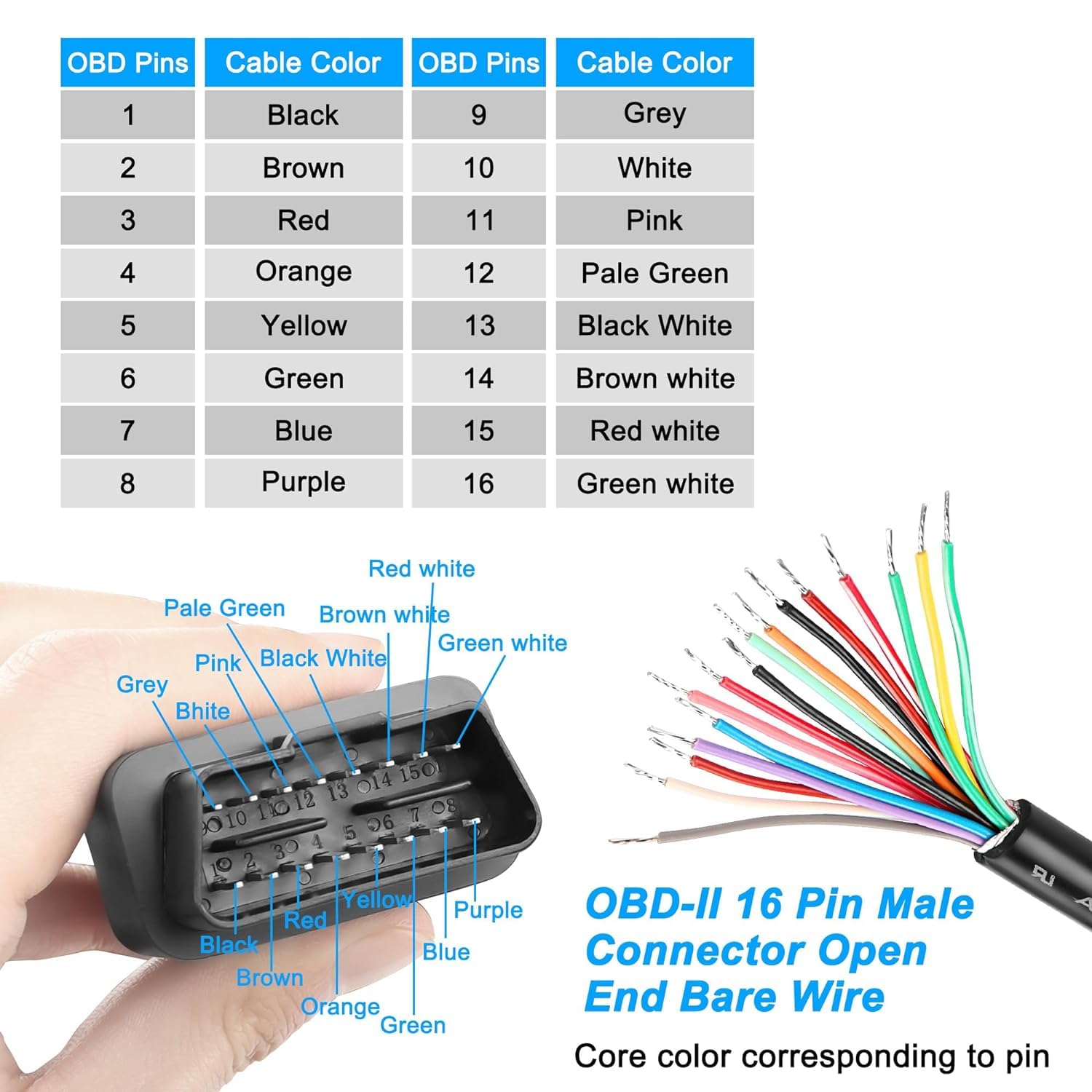
Connect the USB-CAN-A adapter to these pins, then plug it into a USB port on your computer.
3. USB-CAN-A adapter configuration
Essential step — one-time setup
| Parameter | Value |
|---|---|
CAN Mode |
Normal |
Protocol |
Variable length |
CAN Baud Rate |
500k |
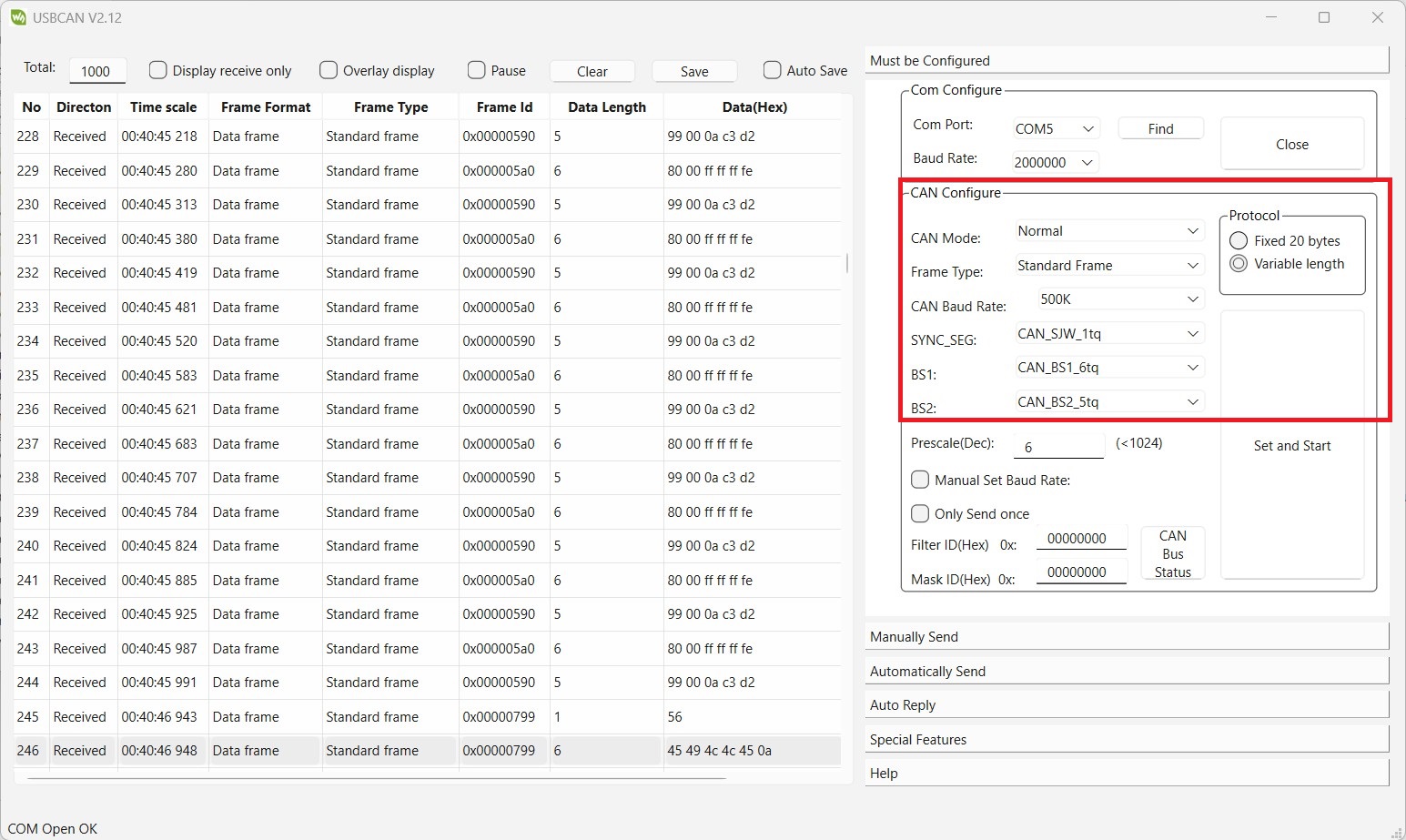
Once the settings are saved, close the USBCAN utility. The configuration is persistent — you won't need to redo it on subsequent uses.
4. Launching EVSpark
EVSpark is portable software: no installation required, it runs directly from the executable. You can even use it from a USB stick.
- Launch EVSpark.exe. If your antivirus flags a false positive, see our antivirus help page.
- Select your language from the menu (Français, English, Deutsch).
- In the Connection tab, select the adapter type (WaveShare USB-CAN-A) and the corresponding COM port.
- Click Connect.
If the connection succeeds, CAN frames should scroll in the Frames tab. The Vehicle tab shows the overall state of the Mia: BMS, battery, motor, charger, ABS, doors, odometer.
Advanced features
- Save your diagnostic sessions.
- Export data to CSV format.
- View fault code history.
5. Common issues
- Make sure the vehicle ignition is on.
- Double-check the three settings in the USBCAN utility (Normal, Variable length, 500k).
- Verify the OBD2 wiring (pins 6 and 14).
- In Windows Device Manager, check that the adapter is recognized and not already in use by another program.
- Try a different USB port.
- EVSpark is free, open-source software compiled with PyInstaller, which sometimes triggers false positives. The source code is available and can be audited.
- antivirus help page
Questions, feedback, unexpected behavior? Write to contact@evspark.fr.